Saturday, February 14, 2015

Robocraft- Colored and name change

So I found a way to get colored robot nametags with Winsock Packet Editor. (If you don't know what WPE is, go google it)

What you need

  • A Robocraft account
  • Basic knowledge of Winsock Packet Editor


Steps
  1. Open Robocraft. Once you reach the editor, begin tracking "Send" type packets with WPE.
  2. Open the garage (G) and rename your robot. If I want the name "AwesomeBot" in red, I type "zzzzzzzzAwesomeBot" in the name field and press enter. The z's are just there as dummy characters, they can be any letter as long as you use 8 of them.
  3. Switch back to WPE and stop tracking packets. In the window that shows up in the center, look for a packet that looks similar to this:

    The packet should start with "..SetRobotName...zzzzzzzzAwesomeBot" or similar
  4. Right click the packet, and select "Send."
  5. If you don't know what color code you want to use yet, pick a color here and copy the hex code. (center top)
  6. Returning to WPE, in the "Send a packet" window, click the first "z" on the right side of the packet editor pane. It should start flashing black/white.
  7. Type an opening square bracket ([) followed by the hex code, and finally a closing square bracket. (])

    If you mess up overwriting the packet, you can close the window and return to step 4 to retry.
  8. After editing the packet data, check the "Send" box within the window. It should be set to send 1 time at whatever delay you choose.
  9. Send the packet, and then close and relaunch Robocraft.
  10. In the editor, the robot name on the top left of the front window will be colored according to the color code. The name in the garage, however, will show the code.


    The name in the editor will be darker than the actual color once you enter a battle.
    Changing the robot's name through the garage will undo this process and the color will be reset to white, you will have to repeat this process to set the color again.


Congratulations! You should now have a colored robot name!
(It may show up in black on the match loading screen but it usually works fine for me. I have also confirmed it always shows the true color for other players with a friend.)

Tuesday, September 9, 2014

How to shutdown any PC within your internet.

For this tutorial you will need cmd.

Open cmd in Windows XP by opening run and typing "cmd":


Open cmd in Windows 7 by pressing the start button and typing "cmd":


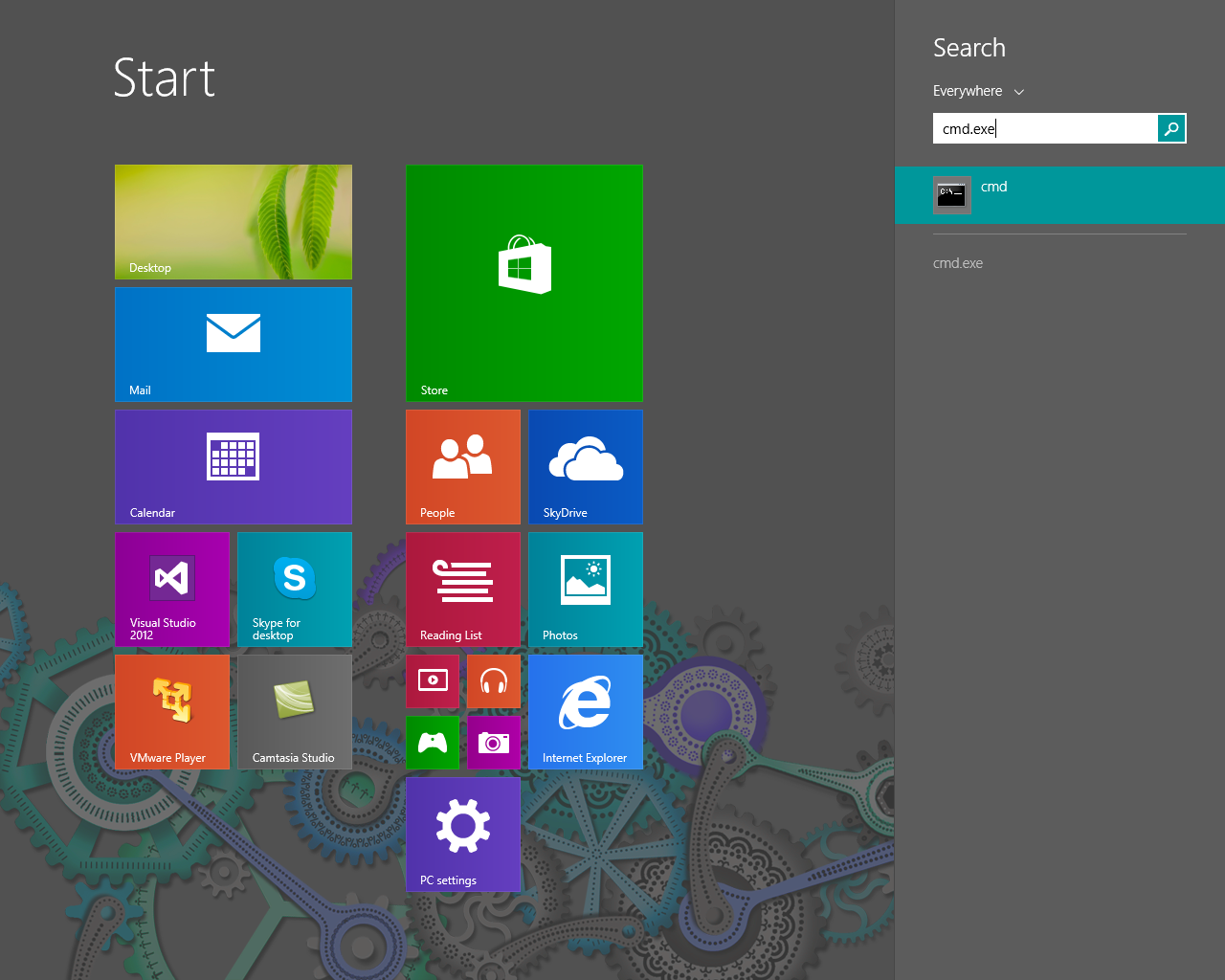
Or if you have Windows 8, go to the start menu and type "cmd":


Once you get cmd opened, next you'll have to use the

shutdown -m \\

command


type it into cmd like this:

shutdown -m \\(ip or computer name)

and replace "(ip or computer name)" to the ip or computer name of the computer you want to shutdown. Then press enter.

 And that's it! if you want something a little extra keep on reading:

Add these new bits for something a little extra:

shutdown -m \\(ip or computer name) -r -c "Your computer will now shutdown in 60 seconds" -t 60


-r : Adding this will make it so the user can't stop his pc from shutting down

-c "" : adding this and some text into the "" will give the user a message before his PC shuts down

-t : Will set how many seconds will pass before it shuts down.


Monday, September 8, 2014

Make your computer talk, and even greet you!

Everyone who owns a computer would like it to have a friendly AI, sadly technology isn't that advanced yet, but they still can do some pretty amazing things!


First open up notepad, and then copy and paste this script


Dim speaks, speech
speaks="Hello"
Set speech=CreateObject("sapi.spvoice")
speech.Speak speaks

Next replace "Hello" with what you would like to say, for example "Good day, sir."

Dim speaks, speech
speaks="Good day, sir."
Set speech=CreateObject("sapi.spvoice")
speech.Speak speaks


Once you have changed it to your liking save the file with a .vbs extension and set the "Save as type:" to "All files"


Then run it.


Now if you want your PC to say your desired words when it starts up, replace "yourtexthere" in the file name with "Welcome" and save it in the directory:

(in Windows XP)
C:\Documents and Settings\All Users\Start Menu\Programs\Startup

 (in Windows 8, Windows 7 and Windows Vista)
 C:\Users\ {User-Name}\AppData\Roaming\Microsoft\Windows\Start Menu\Programs\Startup

How to bypass Windows and Mac passwords


Here's a quick little review on a tool called "Kon-Boot"

It's an easy to use tool that changes the Admin password to simply nothing.

Here's a video on how to install and use it with a usb:

I've used this tool for a very long time and I hope you find this helpful.


You can buy it here: http://www.piotrbania.com/all/kon-boot/

Or find it for free somewhere else.